 Clash Verge
Mihomo core
Process connections using your active configuration
Profiles, proxies and routing rules
Import a profile, choose a proxy and decide which connections go direct. Clash Verge Rev continues the Clash Verge project, with the Mihomo core built in. Manage subscriptions, edit routing rules and configure system proxy or TUN mode on Windows, macOS and Linux.
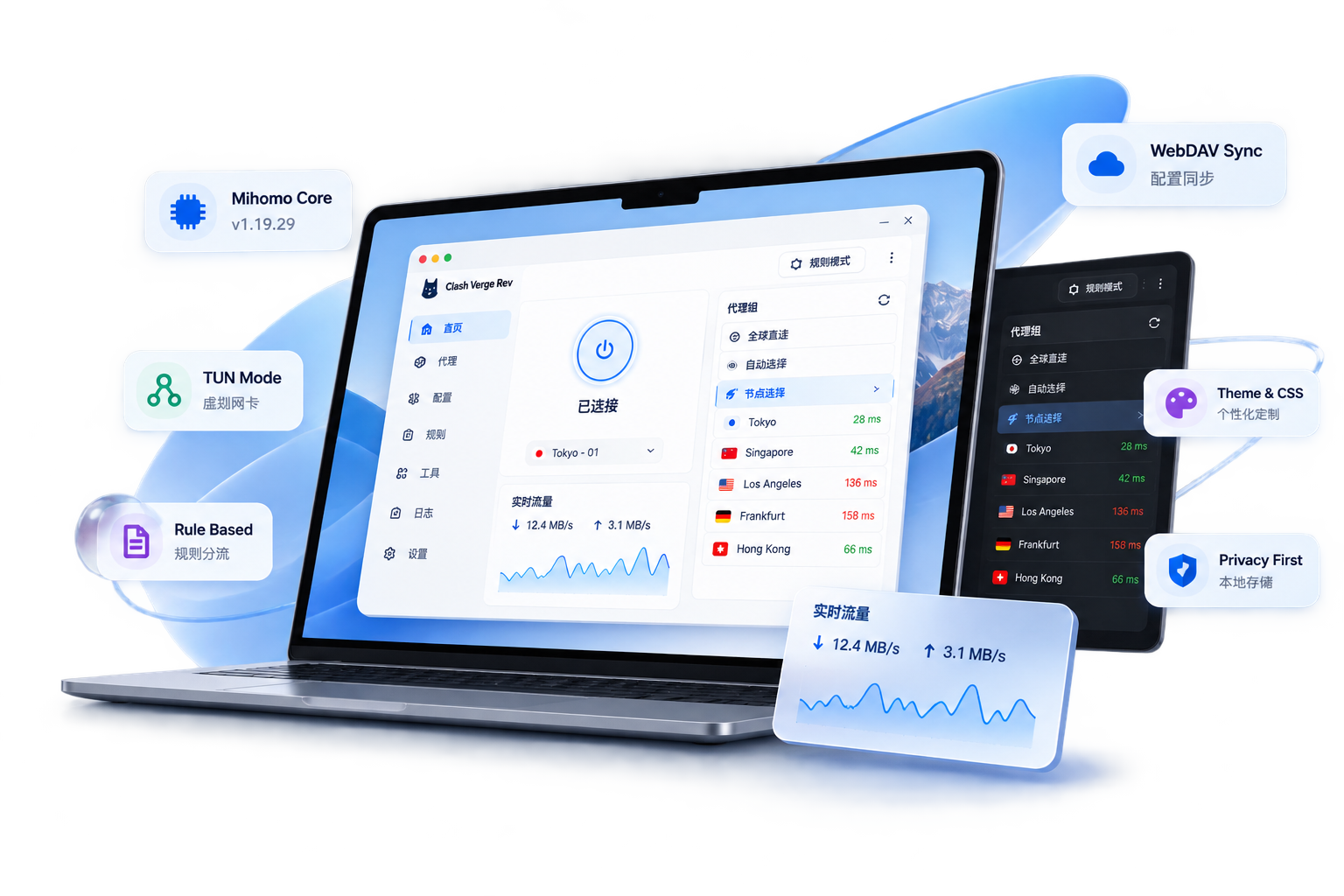
Process connections using your active configuration
Route supported app traffic through the local core
Import a subscription URL or load a local config file
Choose proxies and edit how connections are routed
Back up settings to a WebDAV service of your choice
Customize colors, proxy group icons and the tray icon
Apply custom configuration fields and JavaScript logic
Choose a build for your operating system and CPU
Clash Verge brings profile imports, proxy selection and rule editing into a desktop interface. The Rev project bundles Mihomo to handle DNS, evaluate rules and forward connections.

Start with Stable for everyday use. AutoBuild includes ongoing development changes and may have unresolved issues. The bundled Mihomo core has its own version and channel.
Browsers, command-line tools and other desktop apps handle proxy settings differently. Choose how traffic reaches Mihomo, then use routing rules and proxy groups to select its path.





A Clash configuration defines proxies, groups and rules. Clash Verge manages that configuration, while Mihomo processes connections. System proxy settings and TUN determine which app traffic reaches the core.
In Rule mode, Mihomo checks routing rules in order and applies the matching policy. A request can use a proxy group, connect directly or follow another configured action. Proxy groups select an endpoint according to their type and settings.
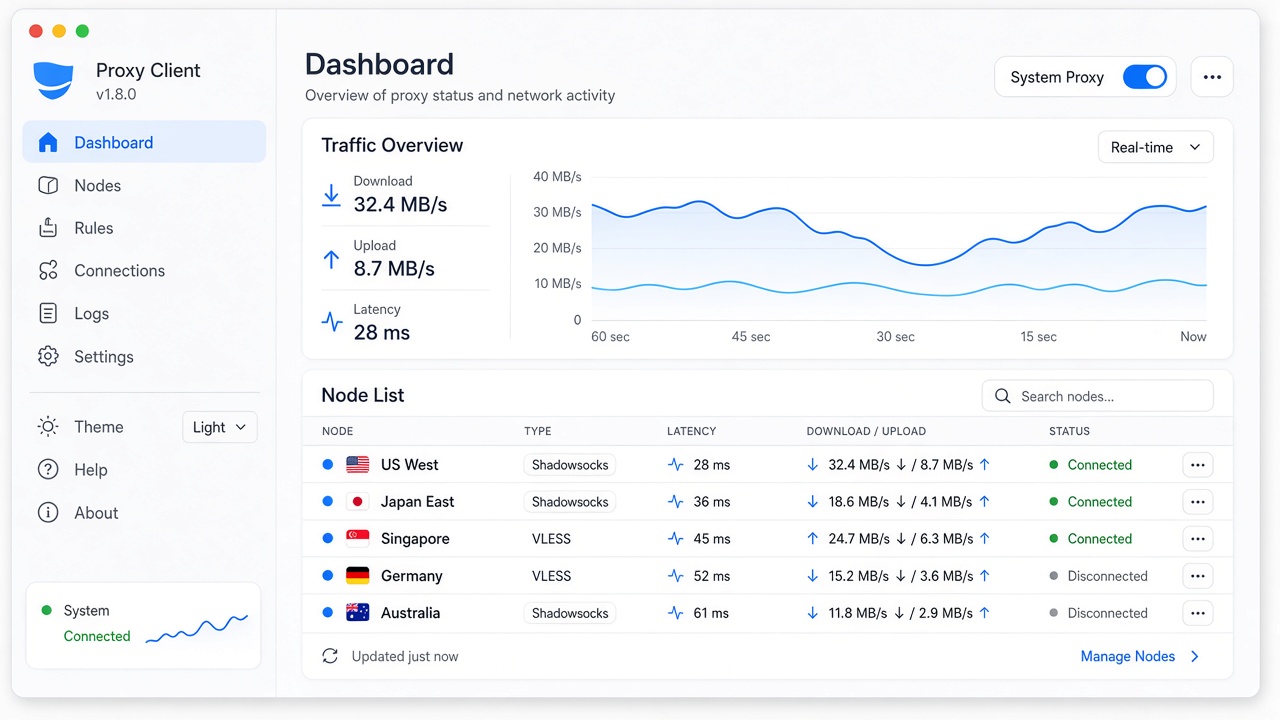
System proxy points supported applications to a local proxy port. TUN uses a virtual network adapter and routing configuration to handle traffic from additional apps. Its coverage depends on permissions, routes and DNS settings.
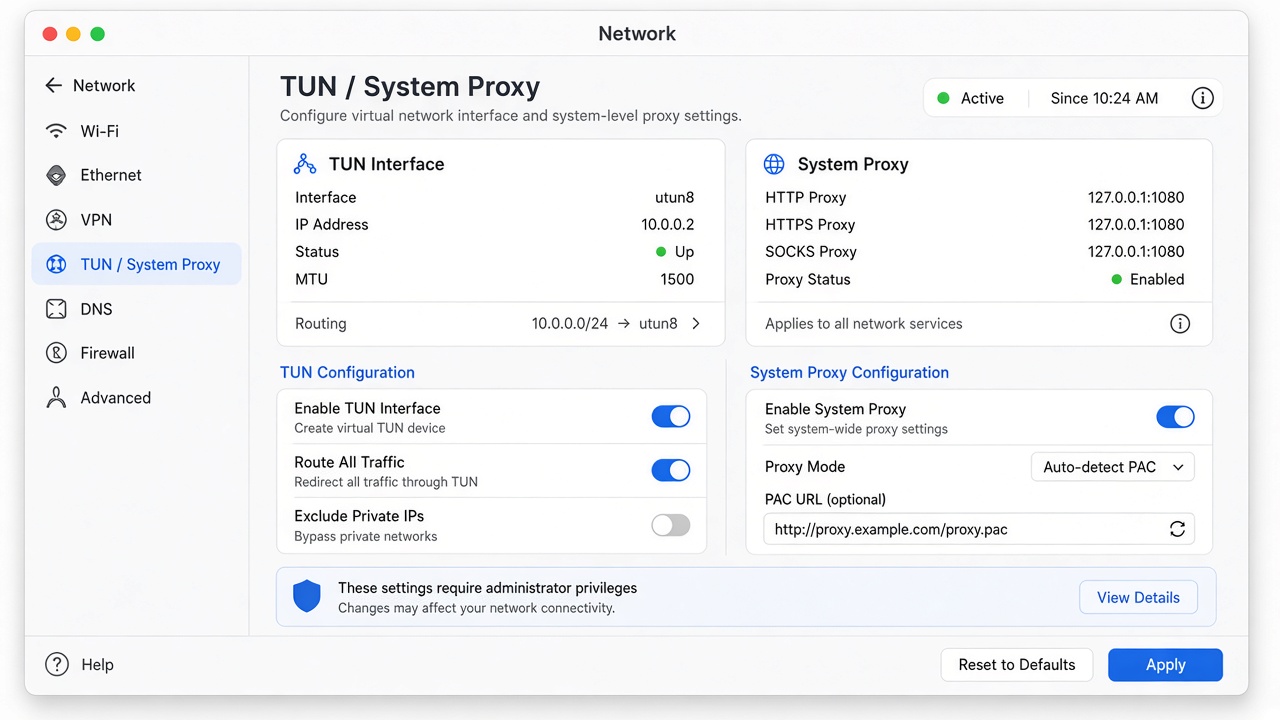
Add a subscription URL or load a local configuration, then review the available proxies and groups. The app manages the profile; proxy endpoints come from your provider or your own infrastructure. No proxy service is included.
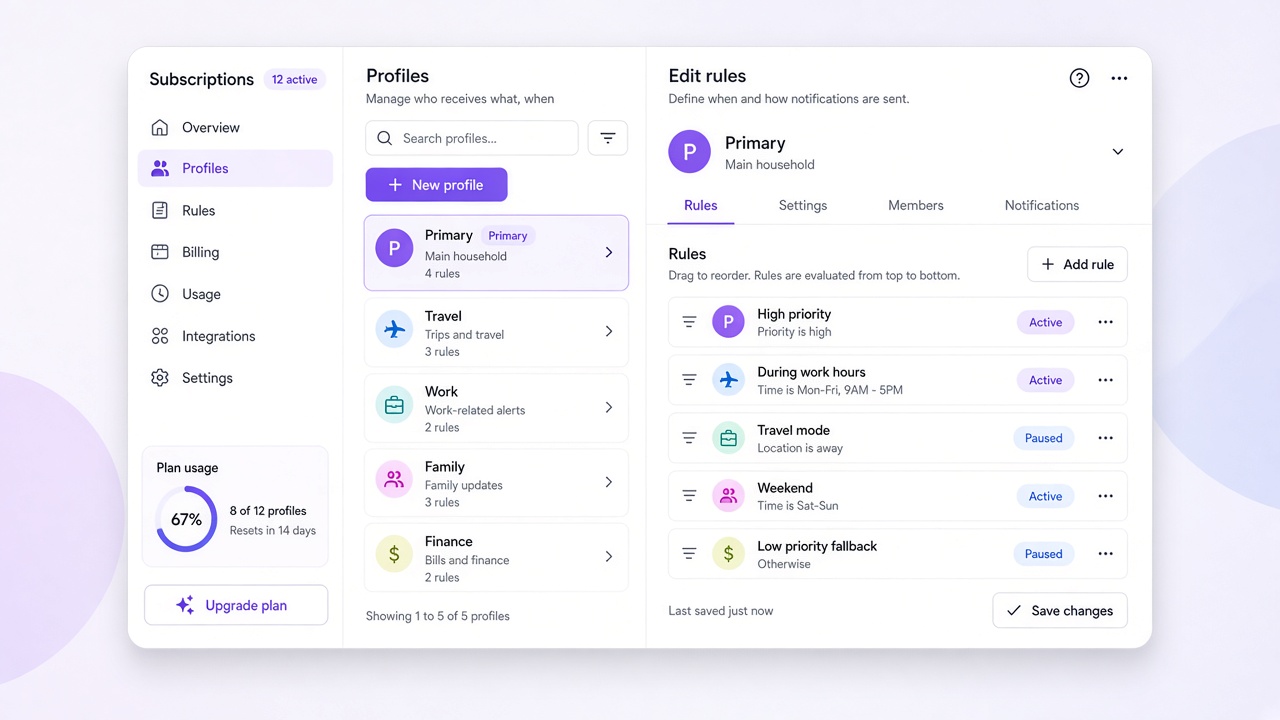
Save a configuration backup to a WebDAV service you choose, then restore it when needed. Adjust theme colors, proxy group icons, the tray icon or custom CSS separately from your routing settings.
Subscription updates can replace edits made directly to the downloaded profile. Keep recurring changes in Merge or Script extensions, and check the resulting configuration after updates. Backups and appearance settings are managed separately.
Apply custom fields to a base profile. Check how your app version merges or replaces lists, rules and existing values.
Use JavaScript to modify proxies, groups or rules based on conditions. Review the generated configuration before relying on it.
Customize colors, icons and interface styles. Routing behavior remains controlled by the active core configuration.
Store backups with your chosen WebDAV service. After a restore, review paths, permissions and settings for the current device.
Use the bundled core or switch to Alpha when testing requires it. Record both app and core versions when troubleshooting.
Browse the GPL-3.0 source code, report reproducible issues and contribute changes through the project’s GitHub repository.
Clash Verge Rev provides desktop controls for profiles, proxies and system integration. Running Mihomo directly gives you a configuration-file workflow. Other Clash clients offer different combinations of cores, editors and platform support.
| Feature | Clash Verge Rev | Mihomo CLI | Other Clash clients |
|---|---|---|---|
| Desktop interface | Included · Tauri app | No desktop GUI · Optional control panels | Check the project |
| Mihomo core | Bundled · Alpha available | Run the core directly | Check the bundled core and version |
| System proxy / TUN | App controls | Configure OS settings and core options | Depends on client and platform |
| Profiles & rules | Visual management | Maintain configuration files | Editing tools vary |
| WebDAV backup | Supported | Use external backup tools | Backup options vary |
| Extensions & appearance | Merge, Script and CSS | No desktop themes · External config processing | Extension support varies |
| Desktop platforms | Windows / macOS / Linux | Choose a matching core build | Check supported systems |
| License | GPL-3.0 | Mihomo project license | Project-specific license |
Clash Verge features listed here refer to the Rev continuation project. Availability depends on the app version, operating system and permissions; consult the relevant project documentation for details.
Answers about the client, proxy services, routing modes and desktop support.
Clash originally refers to a rule-based proxy core. Clash Verge provides a desktop interface for managing related configurations. Clash Verge Rev continues that desktop project and bundles Mihomo, also known as Clash.Meta, to process connections, DNS and routing rules.
No. Bring a working subscription URL or a compatible local profile containing your own proxy endpoints. The client manages the configuration; server availability, pricing and connection performance depend on the provider or infrastructure you use.
Start with system proxy if your apps follow the operating system’s proxy settings. TUN provides a virtual-adapter approach for other traffic, but requires suitable permissions and routing configuration. Check connection details to confirm that the intended app traffic reaches the core.
Yes, by maintaining them through the supported rule editor or configuration extensions instead of editing only the downloaded subscription file. Merge applies configuration fields, while Script processes the profile with JavaScript. Review the final rule order after an update.
The project states that configuration and logs are stored locally and that it does not collect user data. Subscription updates, proxy connections and configured WebDAV backups still involve network requests. Data handling by those services depends on their own settings and policies.
Clash Verge Rev supports Windows, macOS and Linux. Choose a release that matches your CPU architecture and system requirements. This project does not provide an Android or iOS client; mobile apps from other projects have their own compatibility requirements.
Browse source code, release notes and issue discussions on GitHub. Choose a build for your device, prepare a working profile and review the relevant setup instructions before enabling proxy routing.
Download Clash Verge