 Clash Verge
Windows
- The download below is for x64 processors
- Check the release requirements and WebView2 availability
Get Clash Verge Rev for Windows, macOS or Linux, with Mihomo built in. Import your subscription or local profile, choose a proxy and configure routing rules. Select a build that matches your device; proxy servers and subscription services are supplied separately.
Bring your own profile and proxy endpoints. The client manages routing; your provider or server supplies the connection.
The direct downloads below are version 2.5.2. Match the operating system and CPU architecture before installing. For other builds and release notes, browse the project’s GitHub Releases.
aarch64.dmgx64.dmg build.deb.rpm; verify system dependenciesClash Verge Rev is a desktop project and does not provide Android or iOS builds. Mobile Clash clients are separate projects with their own features and configuration requirements.
Clash Verge provides the desktop controls; Mihomo handles the active configuration. Once a profile is loaded, you can choose proxies, adjust routing policies and inspect connections handled by the core.
Match requests to proxy groups, direct access or other policies
Review available endpoints and choose a group’s active proxy
Import a subscription URL or select a local configuration file
Use Rule, Global or Direct to control traffic entering the core
Store configuration locally and use logs to investigate errors
Compare response times to a test target when choosing a proxy
Back up and restore settings through your chosen WebDAV service
Inspect active connections and traffic processed by Mihomo
Have a working subscription URL or local profile ready. The configuration supplies your proxies and routing policies; connection performance depends on those endpoints and your network.
Match your system and CPU, then follow the release requirements for dependencies and permissions
Add a subscription URL or load a compatible local configuration containing usable proxy endpoints
Activate the profile, choose a proxy in the relevant group and review the routing mode
Choose the appropriate setup for your apps, then check connection details and logs
Start with Stable for everyday use. AutoBuild tracks ongoing development and may introduce unresolved issues or compatibility changes. Read the build notes and back up your settings before switching.
| Comparison | Stable | AutoBuild / Development |
|---|---|---|
| Intended use | Everyday proxy management | Testing changes and reporting issues |
| Code version | Tagged release | Specified development commit |
| Stability expectations | Preferred for routine use | Changes may need further testing |
| Before installing | Check requirements and back up settings | Review build notes, known issues and backups |
The desktop app and Mihomo core have separate versions. Check the relevant changes and configuration compatibility when updating the app or switching cores.
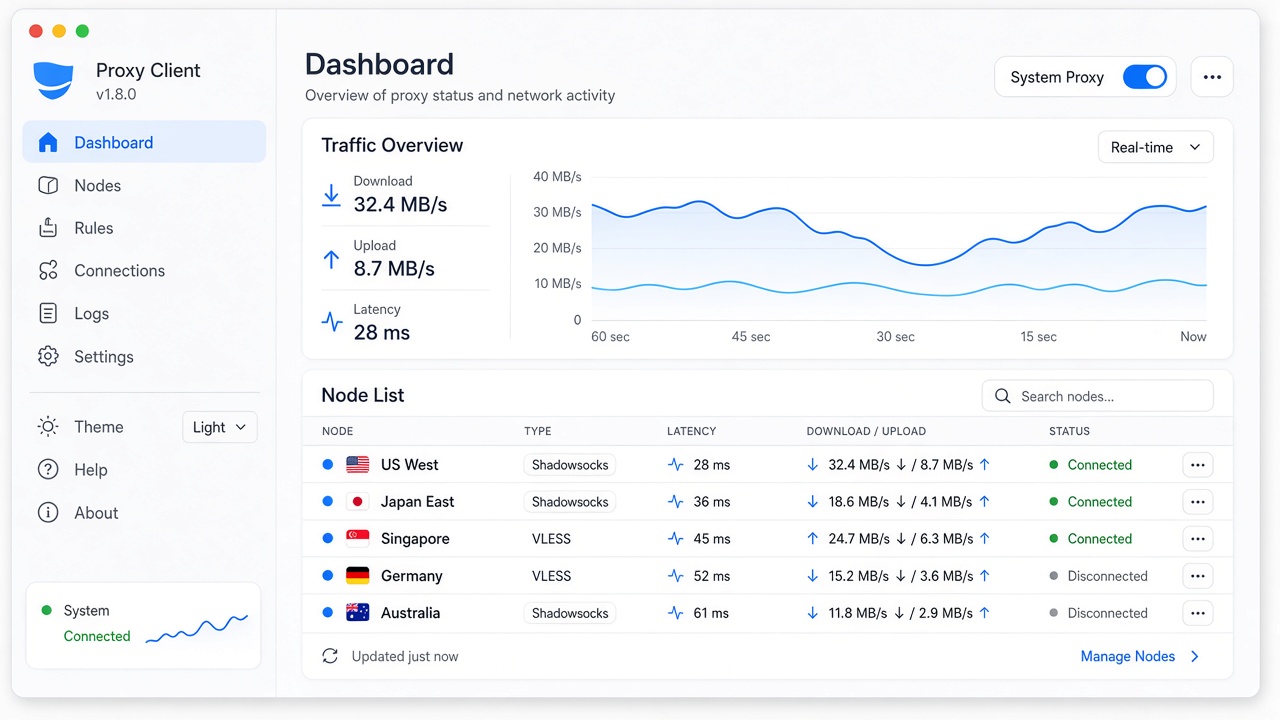
After activating a profile, review its proxies and groups. Once app traffic reaches Mihomo, connection details and traffic statistics help you verify routing. A successful latency test alone does not establish download speed or access to every destination.
An app that opens successfully may still need service permissions or configuration changes before it can route traffic. Check the relevant part of the setup rather than treating every connection issue as an installation failure.
Check the release tag, CPU architecture and dependencies. On Windows, confirm that WebView2 is available.
TUN needs appropriate privileges to configure a virtual adapter and routes. Verify service status and authorization.
Import a working subscription or a local configuration. Proxy endpoints come from your provider or your own servers.
Read the relevant notes before changing versions. Afterward, verify core startup and custom rules.
Keep a WebDAV backup before reinstalling or moving devices. Review local paths and permissions after restoring.
Record your system, app version and exact error. Use logs and existing GitHub issues to narrow down the cause.
Answers about builds, device compatibility, proxy profiles and upgrading.
These links install Clash Verge Rev, the continuation of the Clash Verge desktop project with Mihomo built in. The three direct download buttons point to version 2.5.2 for Windows x64, macOS Apple Silicon and Linux amd64 DEB.
On Windows, check System type in your device information. On macOS, use About This Mac to identify an Apple chip or Intel processor. Linux users should check both CPU architecture and package compatibility. In release filenames, amd64 generally means x64, while aarch64 means ARM64.
No. Clash Verge Rev targets Windows, macOS and Linux desktops. Mobile Clash clients belong to separate projects, so their supported protocols, routing features and configuration formats need to be checked independently.
The client does not require a particular paid subscription and does not include proxy servers. You need working endpoints, which can come from an existing provider or your own infrastructure. Any service fees and usage limits are separate from the desktop app.
Keep a recoverable copy of your profiles, Merge or Script extensions and important custom settings. Read the target version’s migration notes before upgrading. Afterward, confirm that the profile loads, the core starts and your routing rules still behave as intended.
The Windows interface depends on WebView2. If the process runs but the window is blank or the tray icon does not open the interface, check whether WebView2 is missing or disabled. If it is available, compare your system and app version with the relevant project troubleshooting notes.
First confirm that the profile loads and Mihomo is running. Then check service status, required permissions and the exact log message. Adapter, routing or DNS conflicts may also affect TUN. Opening the desktop interface does not by itself confirm that TUN has the access it needs.
Browse the project’s GitHub Releases and expand the assets for the relevant tag. Available architectures and package formats can differ between versions, so read the requirements and known issues alongside the filename.
Find a build for your device and review its compatibility notes. If you already use the client, back up your settings before installing a different version.